3D configurator guide
How does the configurator work?
With the 3D configurator you design the shower enclosure to your measurements, choose profiles and glass and send your request to CSA. Here is how to use it, step by step, with the screenshots from the official CSA guide for private customers.
The screenshots show the Italian version of the configurator, so button names are quoted in Italian with a translation. To switch language, click the flag at the top right of the configurator.
01Access and contact details
-
Step 1
Choose how to sign in
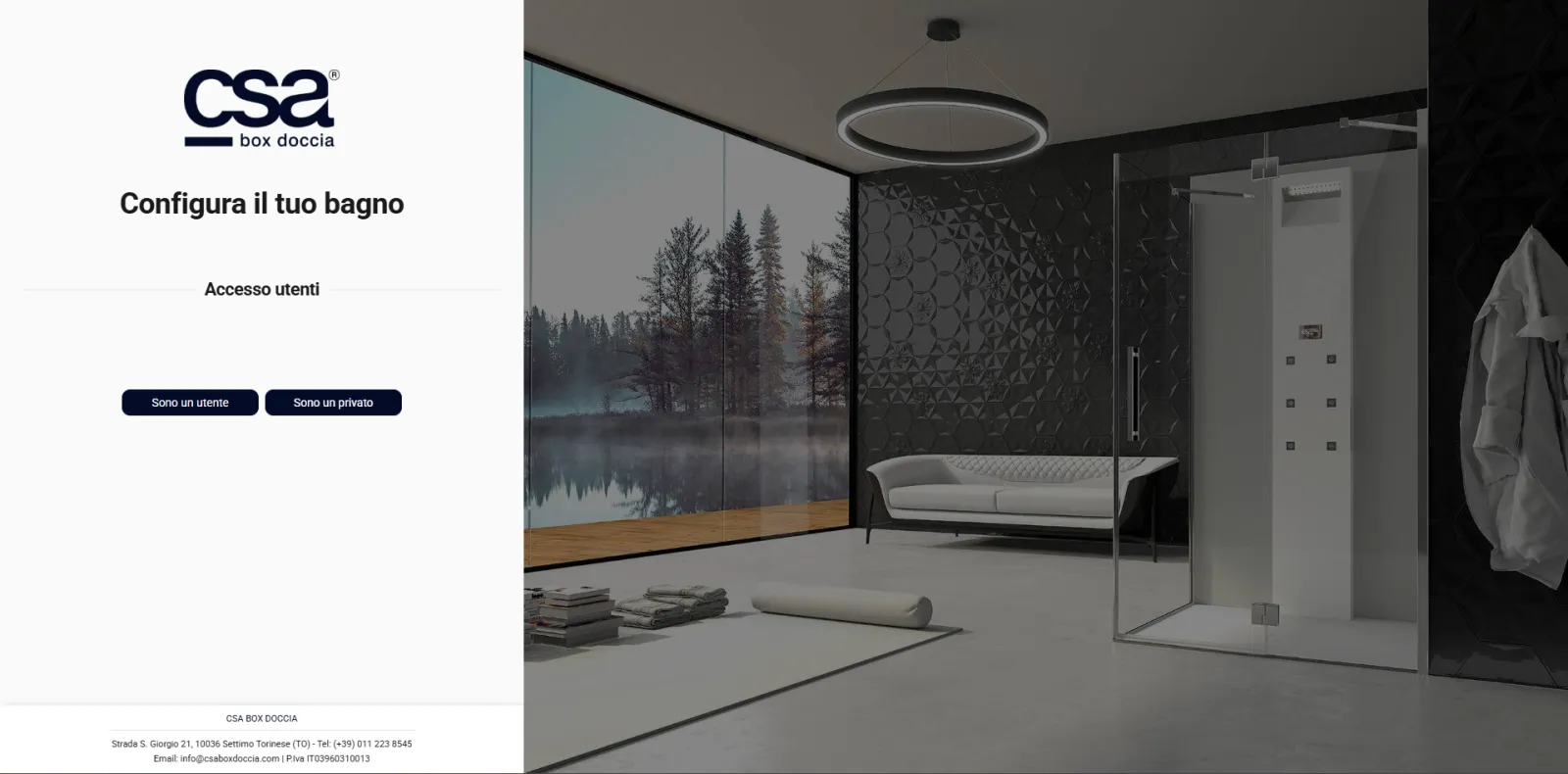
The first screen, «Configura il tuo bagno» (Design your bathroom), offers two ways in. «Sono un utente» (I am a user) is for registered users, that is agents and registered showroom customers: they configure one or more shower enclosures and send the order request straight to the CSA sales office. With «Sono un privato» (I am a private customer) you enter your contact details, configure your shower enclosure and send the request to the CSA marketing office, which forwards it to the agent for your area. This guide follows the private customer route.
-
Step 2
Enter your contact details
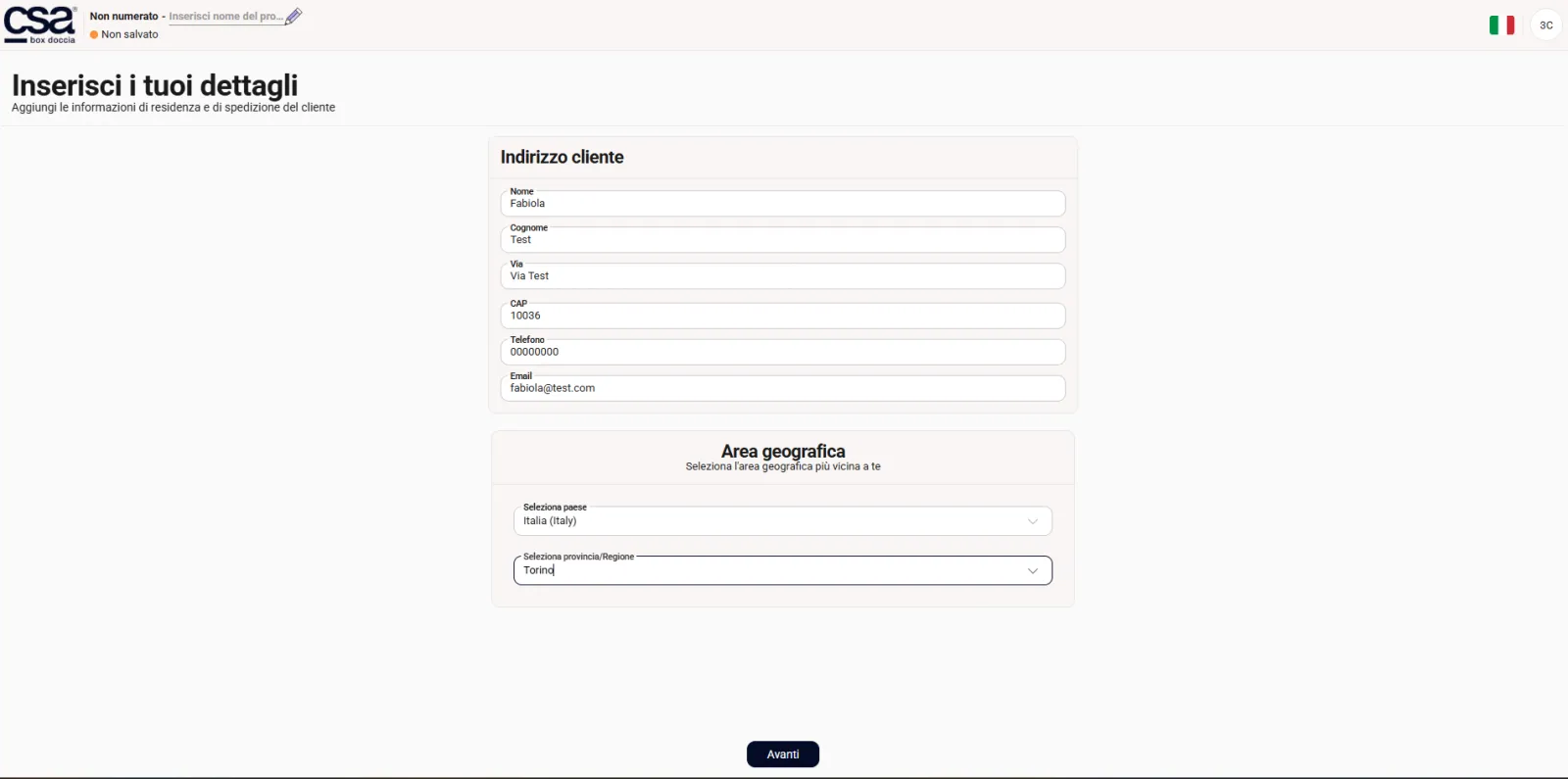
On the «Inserisci i tuoi dettagli» (Enter your details) screen, fill in the customer address: first name, surname, street, postcode, phone and email. Under «Area geografica» (Geographical area), select your country and the province or region nearest to you, then press «Avanti» (Next).
02Choose your shower enclosure
-
Step 3
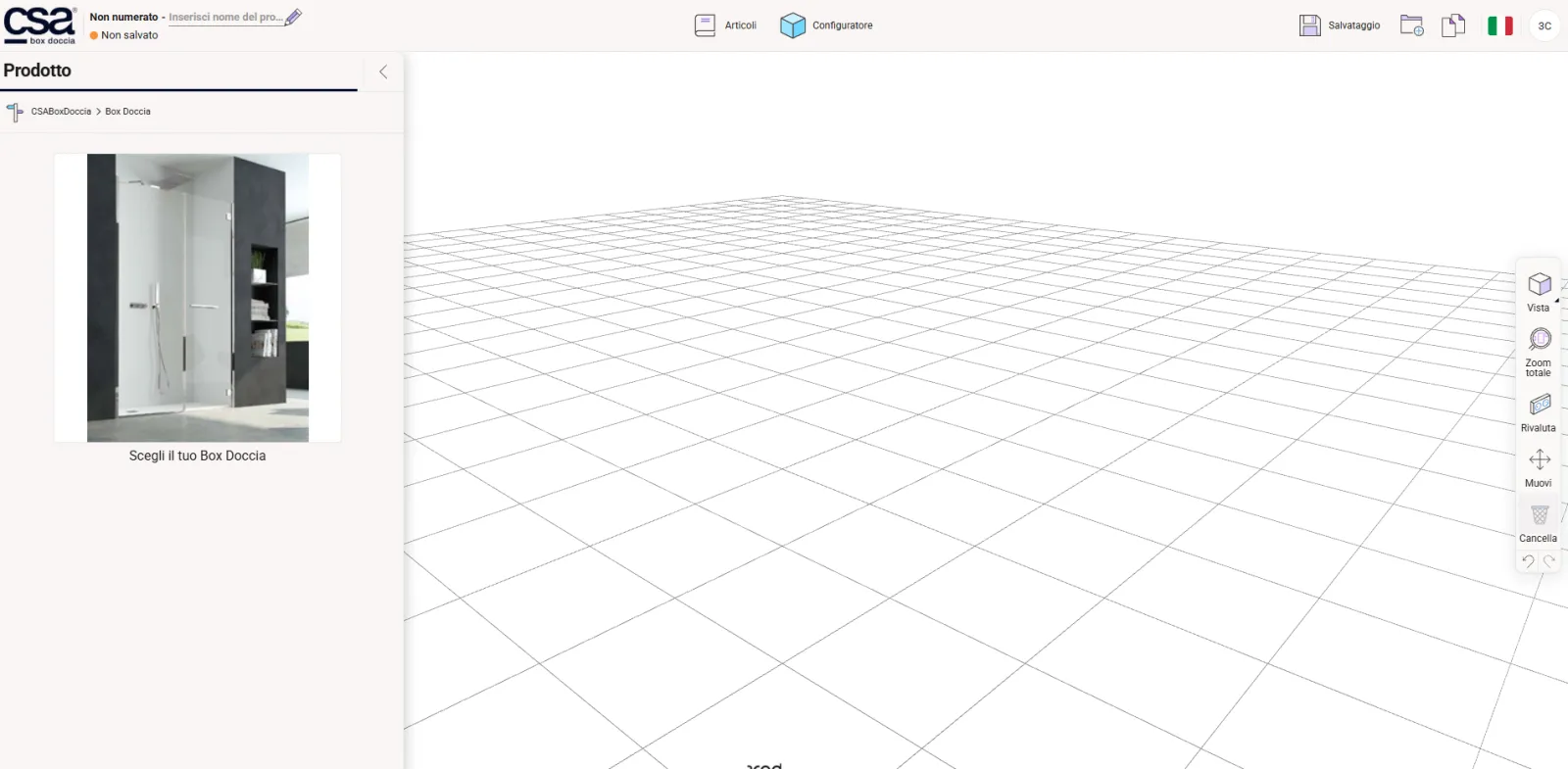
Click «Scegli il tuo Box Doccia»
The workspace opens: the «Prodotto» (Product) column on the left, the 3D scene in the middle. Click «Scegli il tuo Box Doccia» (Choose your shower enclosure) to start. At the top, the «Articoli» button takes you back to the previous screen and the flag on the right changes the language; the buttons along the right-hand side of the scene are used while you configure.
-
Step 4
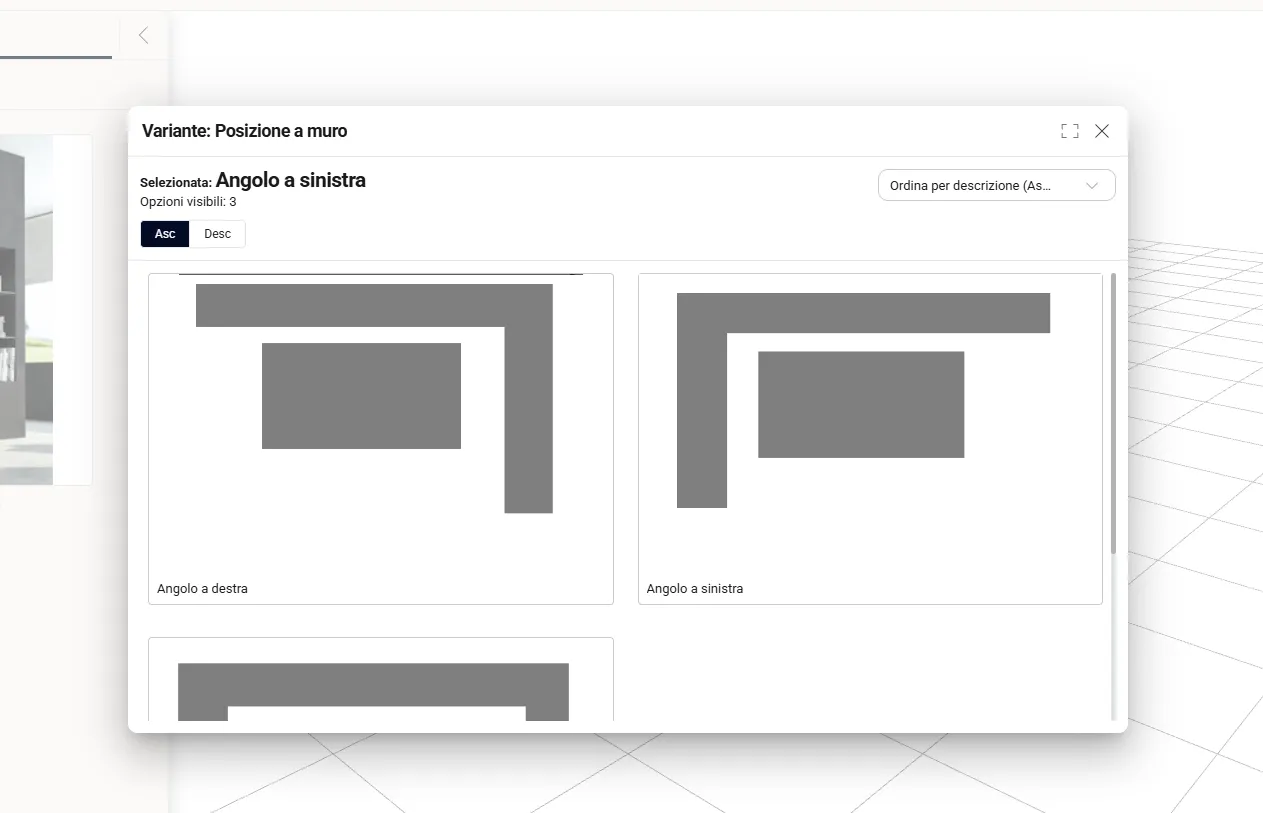
Choose the position
Tell the configurator where the enclosure goes: right-hand corner («Angolo a destra»), left-hand corner («Angolo a sinistra») or alcove («Nicchia»).
-
Step 5
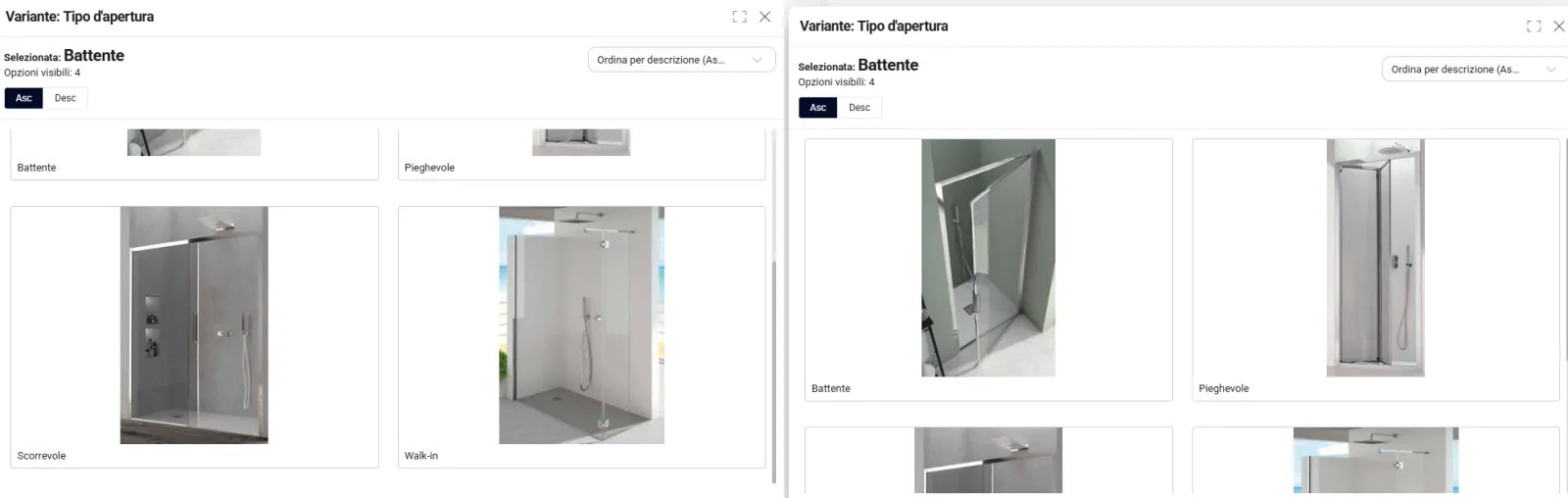
Choose the type of opening
There are four types of opening: hinged («Battente»), folding («Pieghevole»), sliding («Scorrevole») and walk-in.
-
Step 6
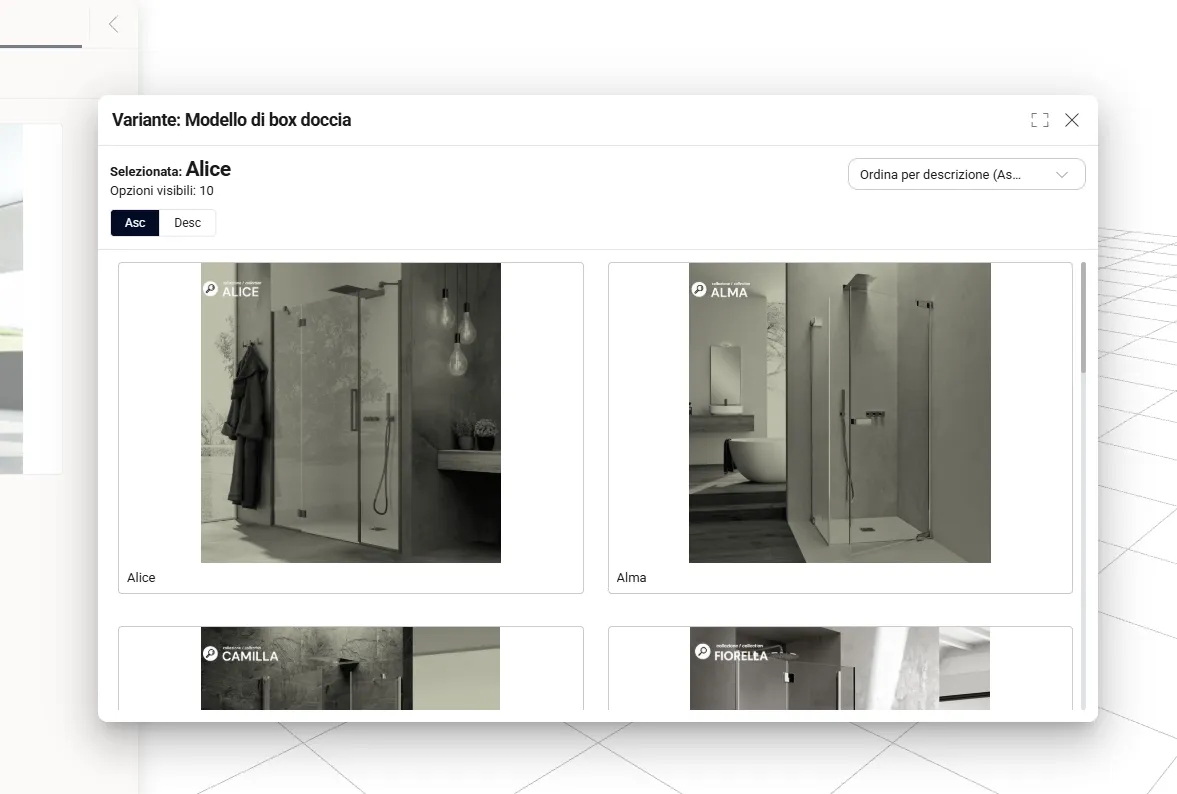
Choose the model
In the «Modello di box doccia» (Shower enclosure model) window, choose the model, for example Alice, Alma, Camilla or Fiorella.
-
Step 7
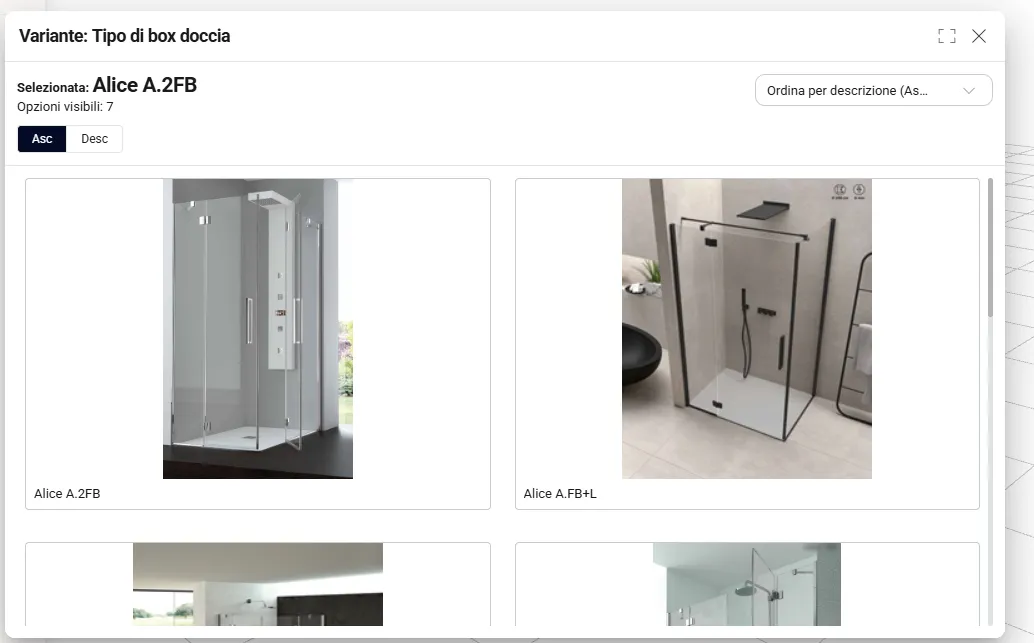
Choose the enclosure type
All the models in the chosen collection appear: for Alice, for example, Alice A.2FB and Alice A.FB+L. Pick the one that suits you.
-
Step 8
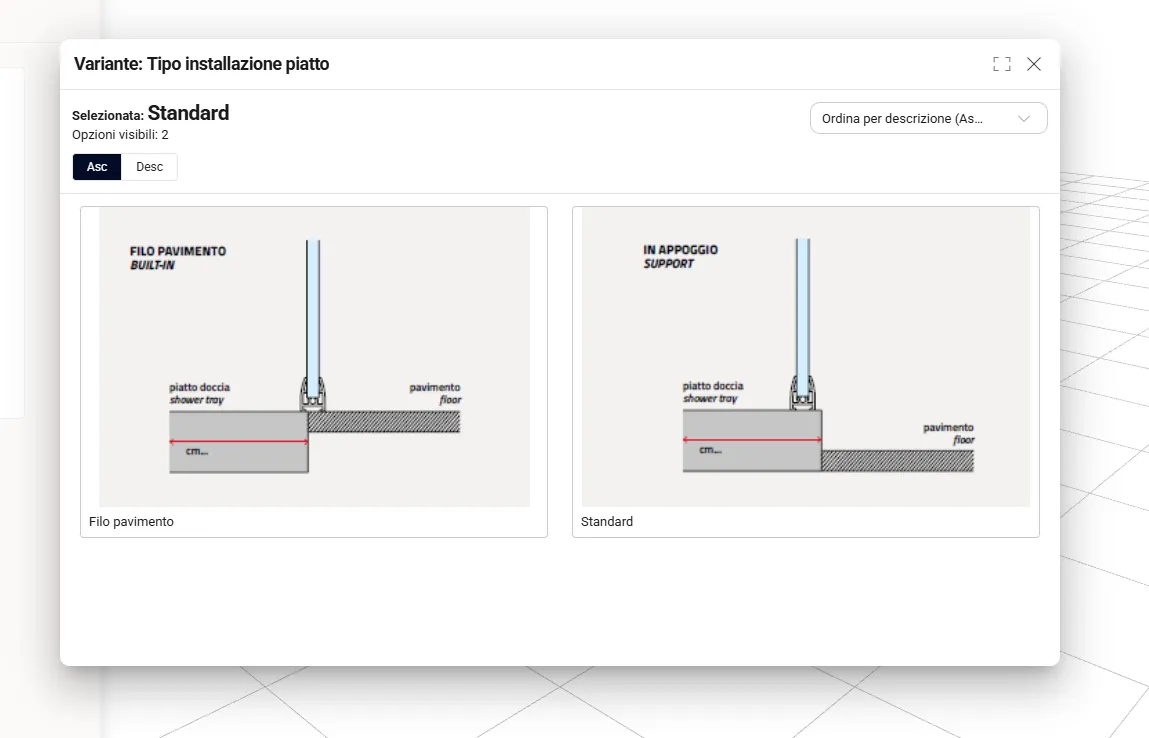
Choose how the tray is installed
Choose how the shower tray is installed: flush with the floor («Filo pavimento») or standard, surface-mounted («In appoggio»).
03Sizes and finishes
-
Step 9
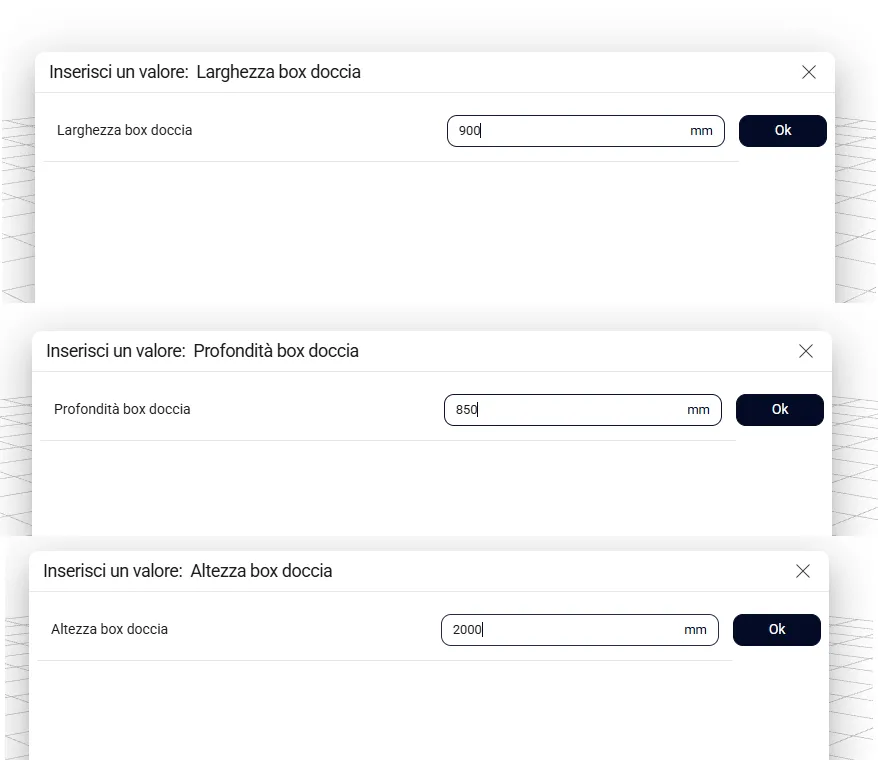
Enter the sizes
Enter the width, depth and height of the shower enclosure one at a time and confirm each value with «Ok». Sizes must be entered in millimetres only: 90 cm is written 900.
-
Step 10
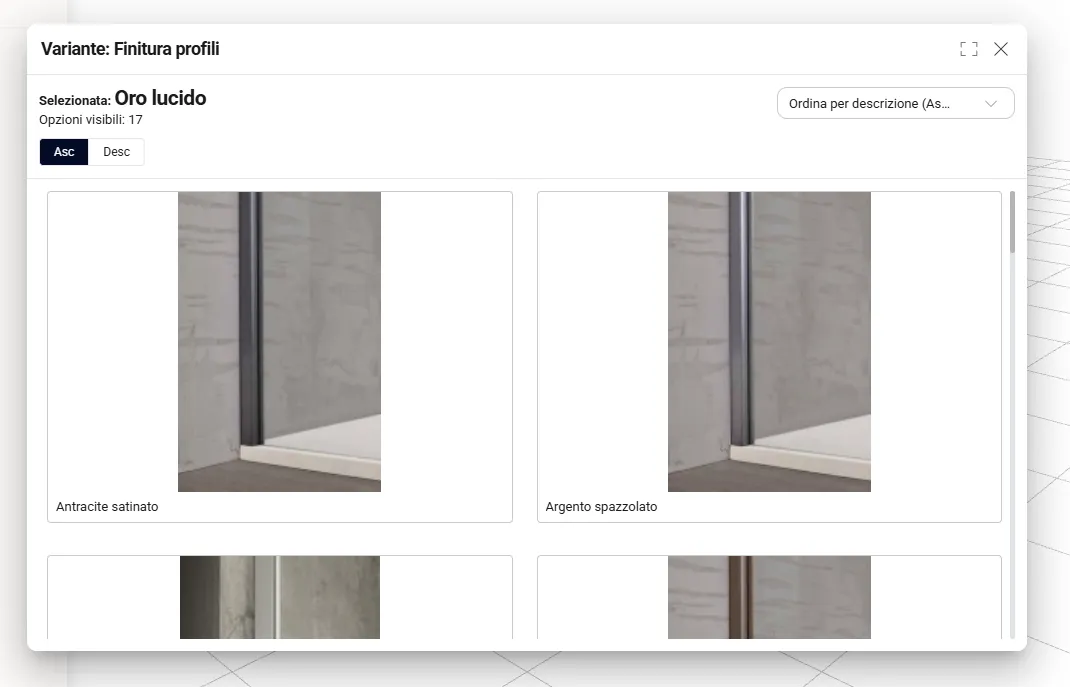
Choose the profile finish
All the profile finishes available for the chosen collection are shown: select the one you prefer.
-
Step 11
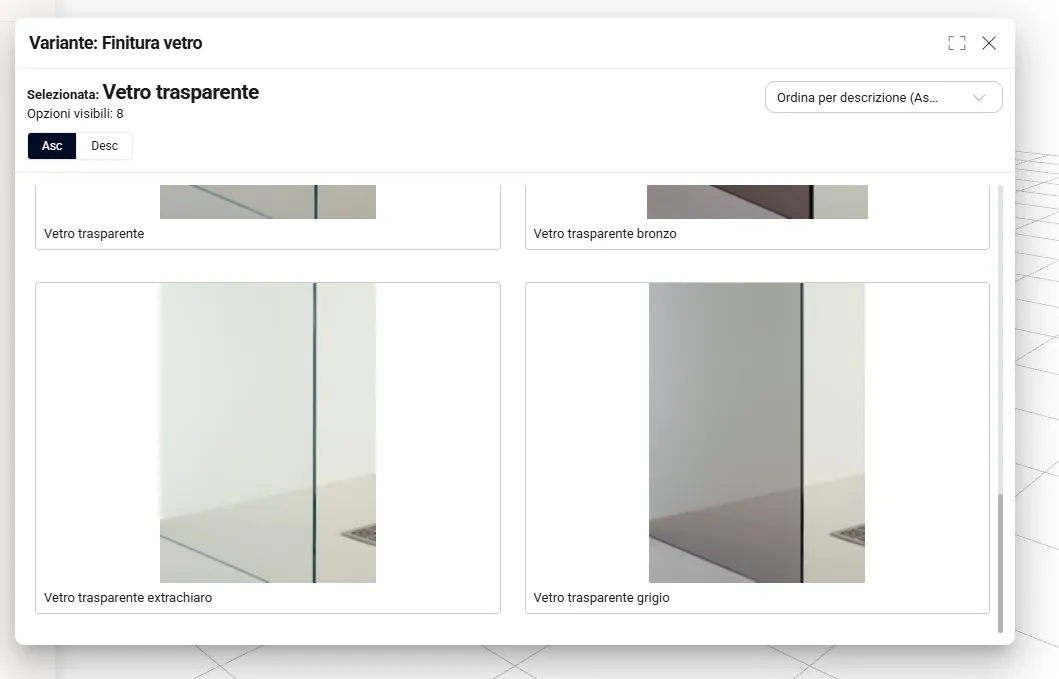
Choose the glass finish
Likewise, all the glass finishes available for the collection are shown, for example clear glass in its standard, extra-clear, grey and bronze versions.
-
Step 12
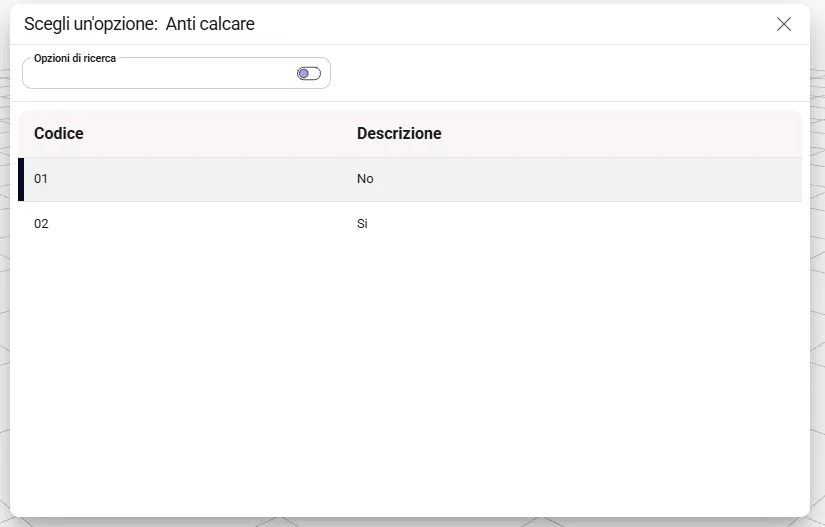
Choose whether you want anti-limescale
In the «Anti calcare» (Anti-limescale) window, choose Sì (Yes) to request the anti-limescale option, otherwise No.
04Review and customise
-
Step 13
See the enclosure in 3D and open «Personalizza»
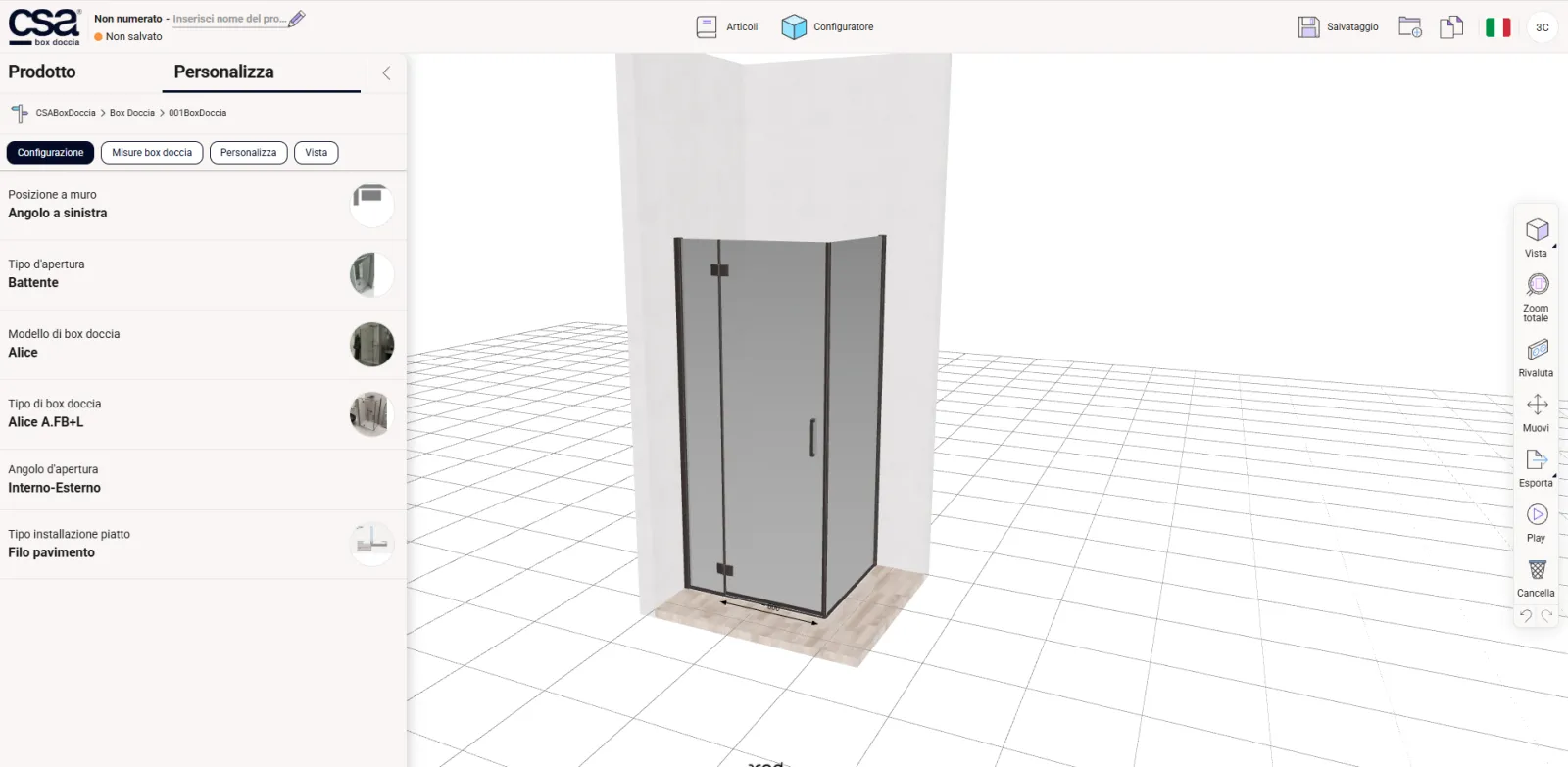
You can now see your creation in 3D and customise it with the controls in the left-hand column. To start, click «Personalizza» (Customise): you will find four buttons, «Configurazione» (Configuration), «Misure box doccia» (Enclosure sizes), «Personalizza» (Customise) and «Vista» (View). In «Configurazione» you can review or change each choice by clicking on it: position, type of opening, model, enclosure type, opening angle (inward-outward) and tray installation.
-
Step 14
Check the sizes
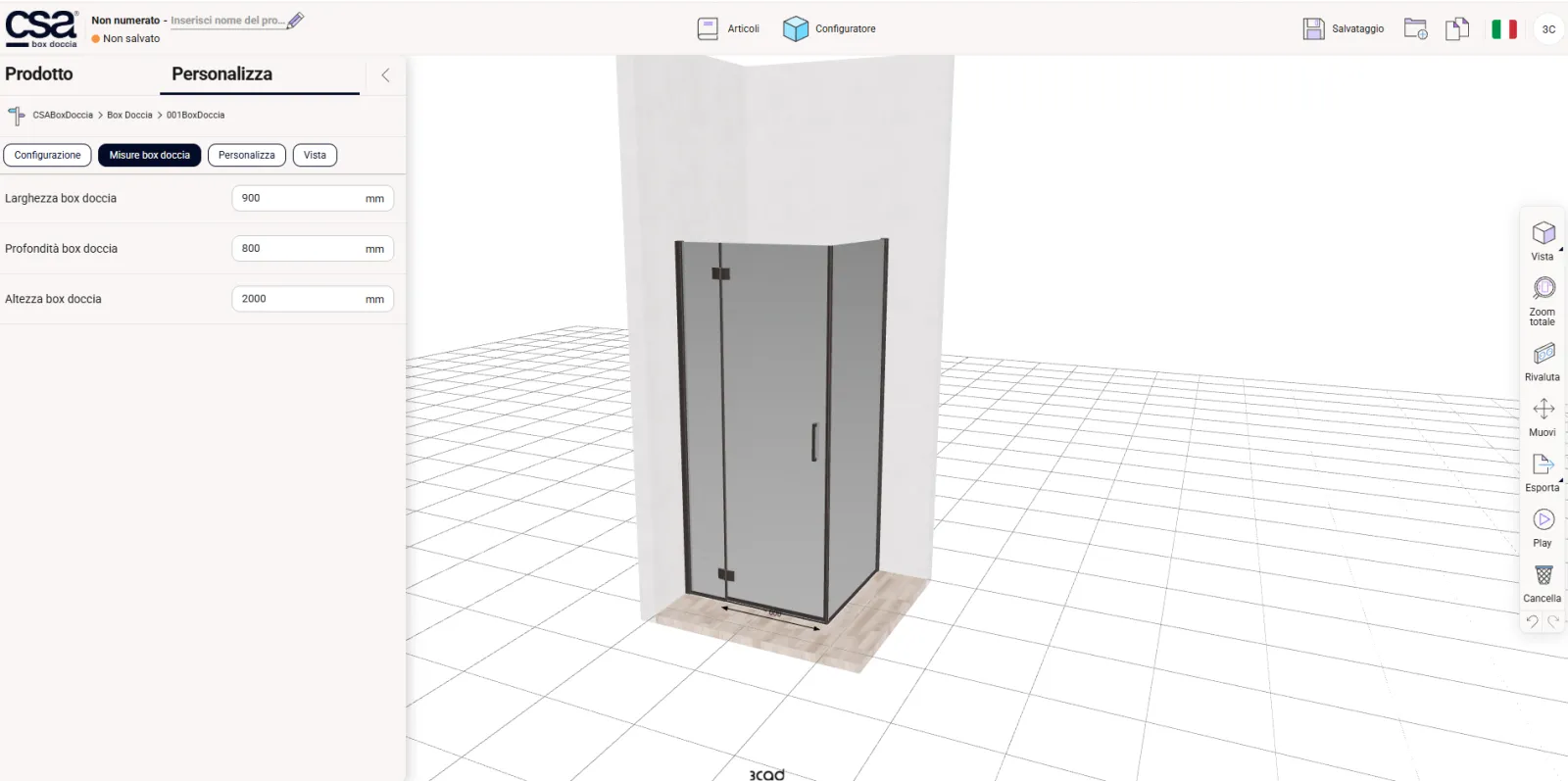
In «Misure box doccia» you can review or change the sizes you entered. Please note: if you enter sizes that cannot be made for the chosen model, the 3D configuration turns red and a message asks you to enter sizes within the catalogue ranges.
-
Step 15
Customise the finishes
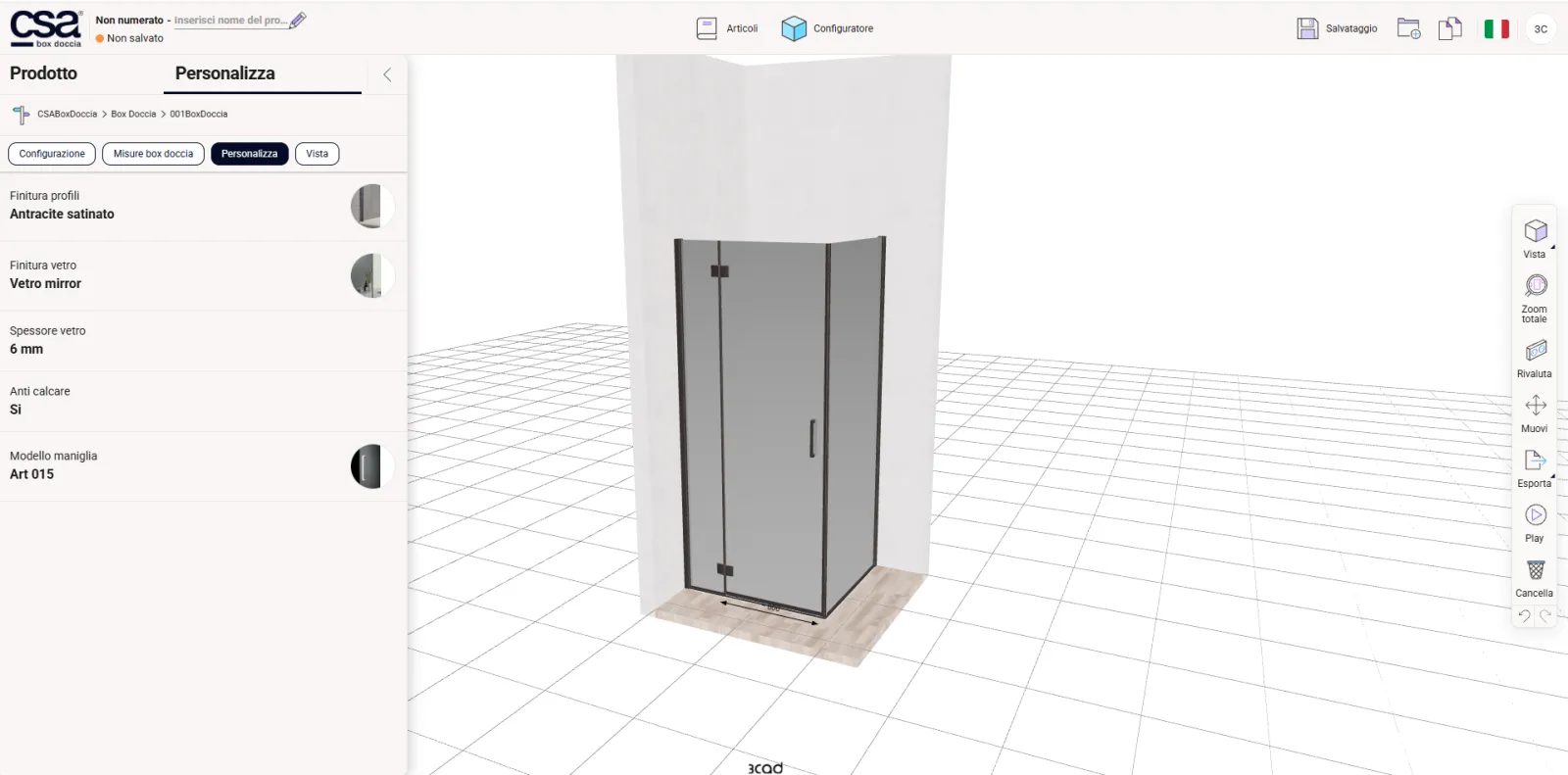
In «Personalizza» you can review or change, by clicking on each item, the profile finish, glass finish, glass thickness, anti-limescale and handle model.
-
Step 16
Set the view
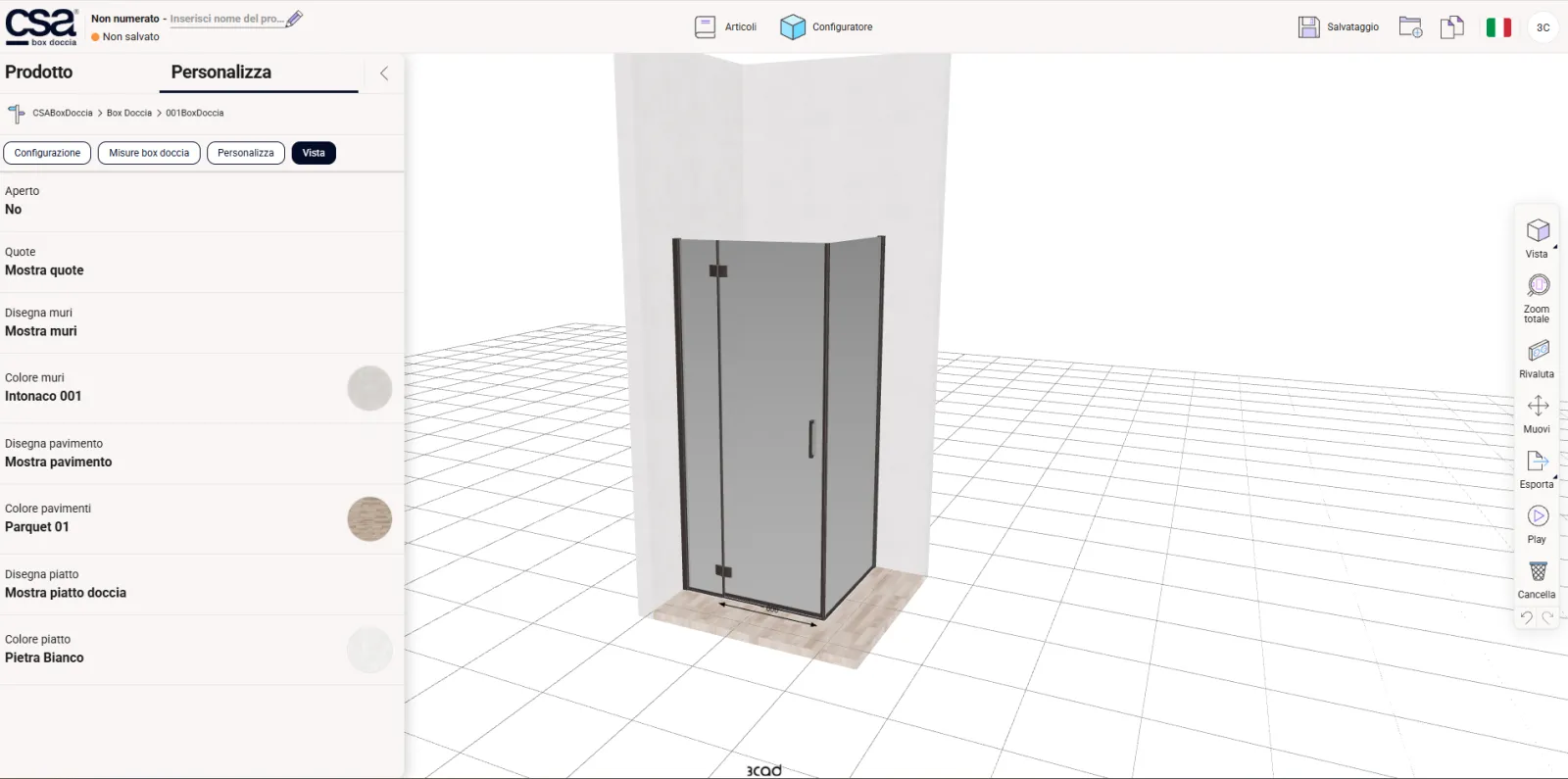
In «Vista» you choose how to see the scene: open («Aperto», shows the entry space), dimensions («Quote»), draw walls, draw floor, draw tray and tray colour.
05Save and send your request
-
Step 17
Name your project and save it
At the top left, click «Inserisci nome del progetto» (the pencil) and rename your project, then press «Salvataggio» (Save) at the top right: the status changes from «Non salvato» (Not saved) to «Bozza» (Draft). Next to it, the first button creates a new project and the second clones the project you have open.

-
Step 18
Send your request
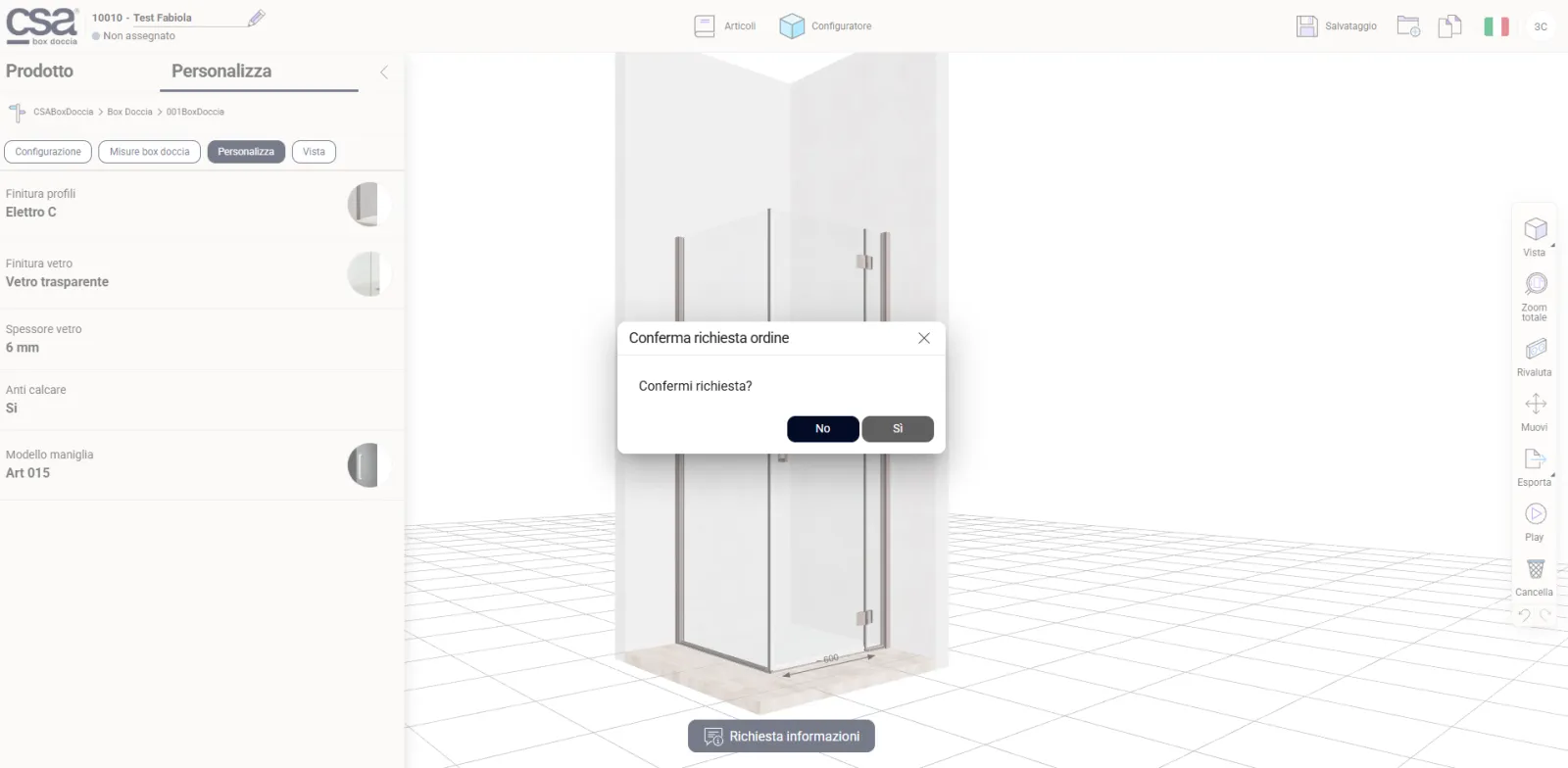
Click «Richiesta informazioni» (Request information) below the 3D scene and confirm sending it to the CSA marketing office by answering «Sì» (Yes) to «Confermi richiesta?» (Confirm request?).
-
Step 19
Request sent
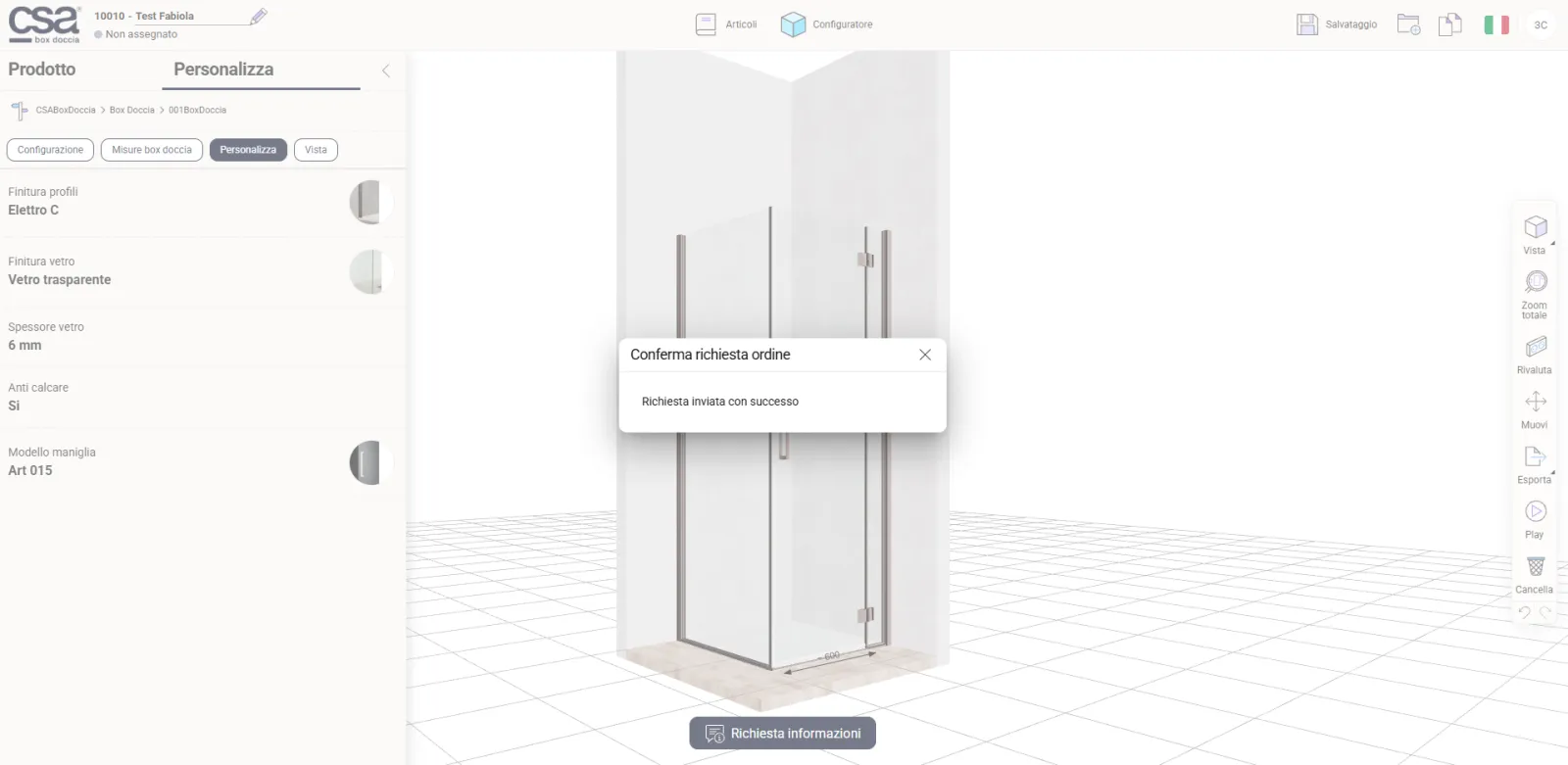
The message «Richiesta inviata con successo» (Request sent successfully) appears. Your request has reached the CSA marketing office, which forwards it to the agent or stockist for your area.
Ready to design your enclosure?
The configurator is provided by our partner 3CAD and opens in a new tab. If you prefer, ask for a quote: we or your nearest stockist will get back to you.
Download the guide (PDF, Italian) ← Back to the configurator page